
Short answer: you can't do it with a Summary Block. Squarespace's own help docs say “Portfolio pages and gallery sections aren't supported” in Summary Blocks (Squarespace Help, updated 29 July 2026).
To show projects on your homepage, you have four options: a gallery section you link by hand, a hidden blog that copies your projects, custom code or a single-purpose plugin, or a custom block that pulls projects directly from your Portfolio page.
The sections below cover each option and help you decide which approach makes the most sense.
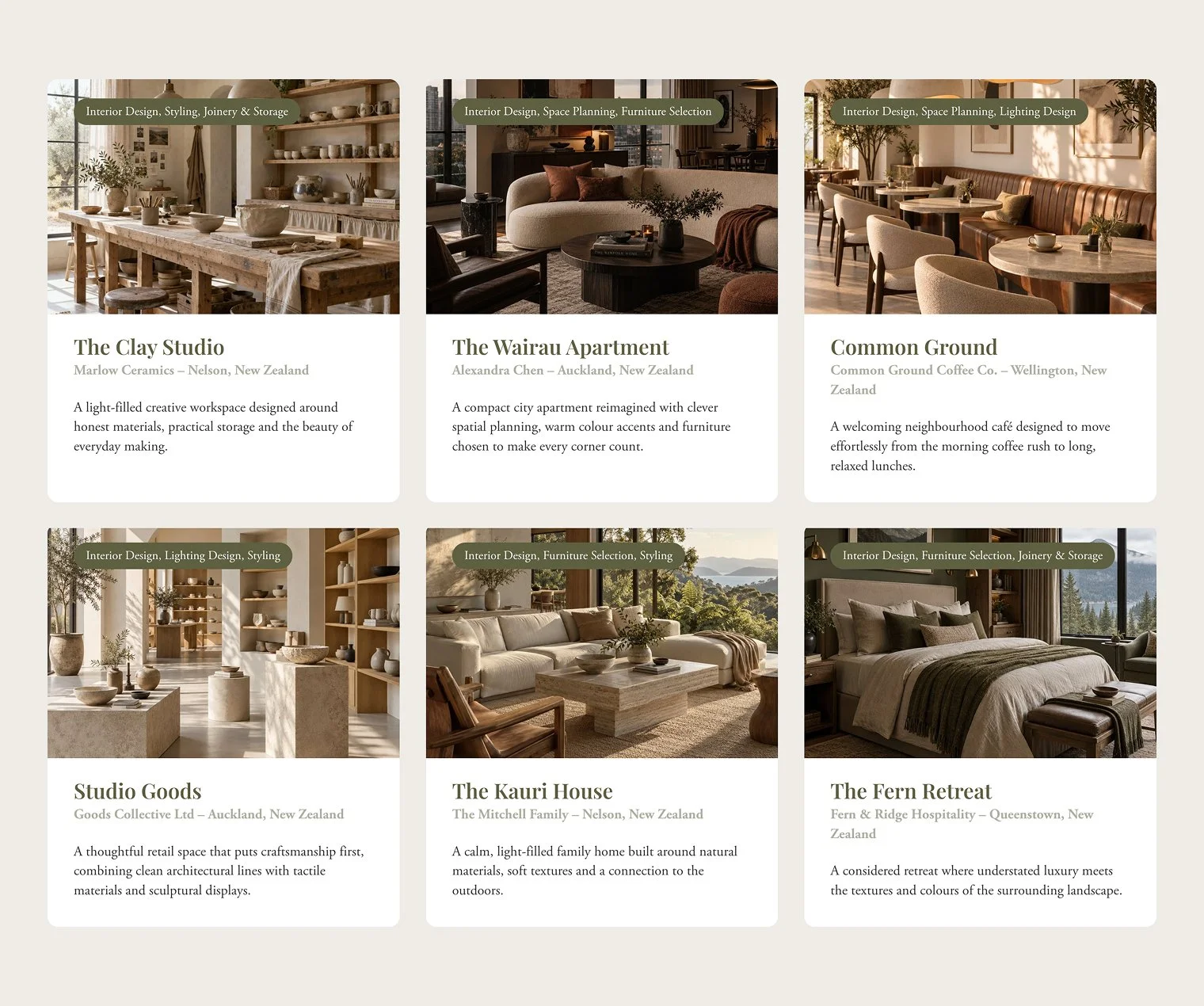
Summary+ block connected to a Portfolio collection in Squarespace using SquareHero Studio
Why the Summary Block doesn't show your portfolio
If you've added a Summary Block, opened the content picker and found your Portfolio page missing, it isn't a setting you've overlooked. Squarespace's Summary Blocks help article (updated 29 July 2026) lists what Summary Blocks can display (blog, events, products, albums and videos) and says plainly:
"Portfolio pages and gallery sections aren't supported."
Portfolio pages have other limits worth knowing about before you plan your site. According to Squarespace's Portfolio pages help article:
A Portfolio page holds a maximum of 60 projects.
Portfolio projects have no categories, so you can't group or filter them natively.
A portfolio can't be embedded inside another page. It only exists as its own page.
The result is that your projects live on one page, and no built-in way exists to show a selection of them anywhere else.
So here are the options that do work.
Option 1: Gallery section with links
This is the simplest free method. You build a gallery that looks like a project grid and link each image to its project page.
On your homepage, click Add Section, then Gallery, and choose a grid or carousel layout.
Upload a thumbnail for each project you want to feature.
Click each image, open its settings and add a link to the project's URL (e.g. /work/riverside-house).
Add titles as image captions, if your chosen layout shows them.
You can do something similar with a List section (Add Section, then a list layout). It lets you add a title, short description, image and button per item. However, Squarespace's auto layouts only support items you add manually List sections help, so it isn't connected to your portfolio either.
The catch: nothing is connected. Each time you add, rename or retire a project, you have to update the gallery by hand. If you forget, your homepage drifts out of date or links to a project that no longer exists.
Best for: sites with a handful of projects that rarely change.
Option 2: Duplicate projects into a hidden blog
Summary Blocks can show blog posts, so a common workaround is to create a blog that exists only to feed the homepage:
Create a new Blog page and move it to the Not Linked section so it isn't in your navigation.
For each project, create a blog post with the same title and thumbnail.
In each post's settings, set the Source URL to the real project page so clicks go to the portfolio, not to the duplicate post.
Add a Summary Block to your homepage and point it at the hidden blog.
The catch: you now have two copies of every project.
Twice the upkeep. Every new project means creating it twice, and every edit has to be made in both places.
Broken links. If a project's URL changes or the Source URL is missed, visitors land on a thin duplicate post or a 404.
The duplicates are public. "Not Linked" only hides the page from navigation. The hidden blog still has its own URLs and RSS feed, and it can appear in your sitemap and in search results. Use the page's SEO settings to hide it from search engines, and expect visitors to find the copies anyway.
Best for: people who already run a blog this way and don't add projects often.
Option 3: Code snippets and single-purpose plugins
Custom code, including AI-generated solutions
JavaScript and CSS can give you plenty of freedom to build a portfolio layout that matches your design. AI tools can also help you generate a solution without having to write every line of code yourself.
There are a couple of things to consider beyond getting the initial result working.
Where does the content come from? Squarespace Portfolio projects don't have built-in fields for details like locations, services, project years or excerpts. You can build a solution that displays this information, but you'll need a reliable way to store and retrieve it.
How easy will it be to maintain? If you or your client wants to change the layout, add a new content field or adjust how projects are displayed, that may mean returning to the code. You can build editing tools around a custom solution, but that adds another layer to develop and maintain.
AI makes custom solutions more accessible than ever, and for the right project, they can be a great fit. It's worth thinking about not just how well the solution works today, but how comfortably you can hand it over to a client who needs to update their site tomorrow.
Best for: designers who want a highly tailored solution and are comfortable maintaining the code, or have a developer available to support it.
Lazy Summaries by Squarewebsites (US$55 one-time)
Lazy Summaries extends Squarespace's native Summary Block to support Portfolio collections, with additional options for displaying, sorting and filtering content.
It's a good option if you like the native Summary Block and want to use it with your Portfolio projects. Rather than building a solution yourself, you install the plugin's code and configure the available options through the block's settings.
Because it builds on the existing Summary Block, the experience will feel familiar if you're already used to working with it. The main thing to consider is how much flexibility you need over the content and design. If you want to add fields that Portfolio projects don't normally have, such as a location or a custom project description, and arrange those elements exactly as you like, you'll need to check whether the plugin supports your requirements.
Best for: designers who want to extend the native Summary Block to display Portfolio projects
Option 4: Build your own project layouts with SquareHero Studio
What if you could pull projects straight from your Portfolio page, but weren't limited to the fields and layouts Squarespace gives you?
That's what SquareHero Studio makes possible.
Studio adds custom blocks to the Squarespace Fluid Engine editor. Its Summary+ block can pull content directly from your Portfolio page, so your homepage stays connected to your projects. But the real advantage is that you're free to decide what each project card contains and how it's laid out.
Want the location beneath each project title? A list of services, the client's name, a project year, or a short description? You can add custom fields to your Portfolio projects and build a card layout around the information that matters to your site.
For example, an architecture portfolio might show the project name, location and year. An interior designer might want the project name, a short description and a list of services. A photographer might prefer a full-bleed image with a title and category.
You're working with your own content and your own layout, rather than trying to fit everything into a predefined template.
Step 1: Connect Summary+ to your Portfolio
Edit your homepage and add a Summary+ block wherever you want your projects to appear. Like other Fluid Engine elements, you can resize and position it freely.
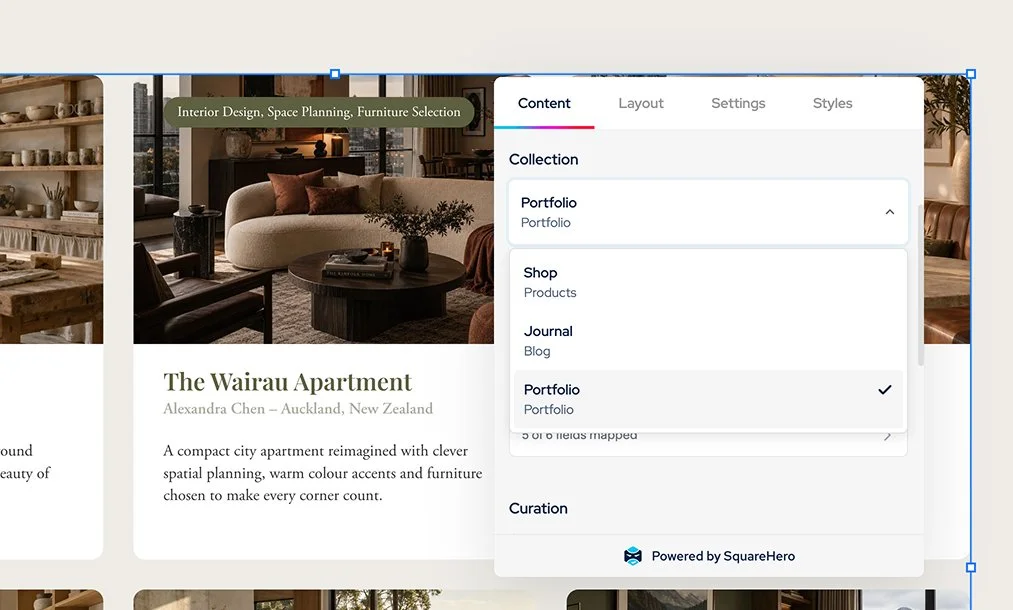
In the block's settings, choose your Portfolio page as the content source.
Summary+ pulls in your projects, including their thumbnails, titles and links.
New projects can then appear automatically, depending on your selection and sorting settings. You don't need to recreate the cards on your homepage every time you add a project.
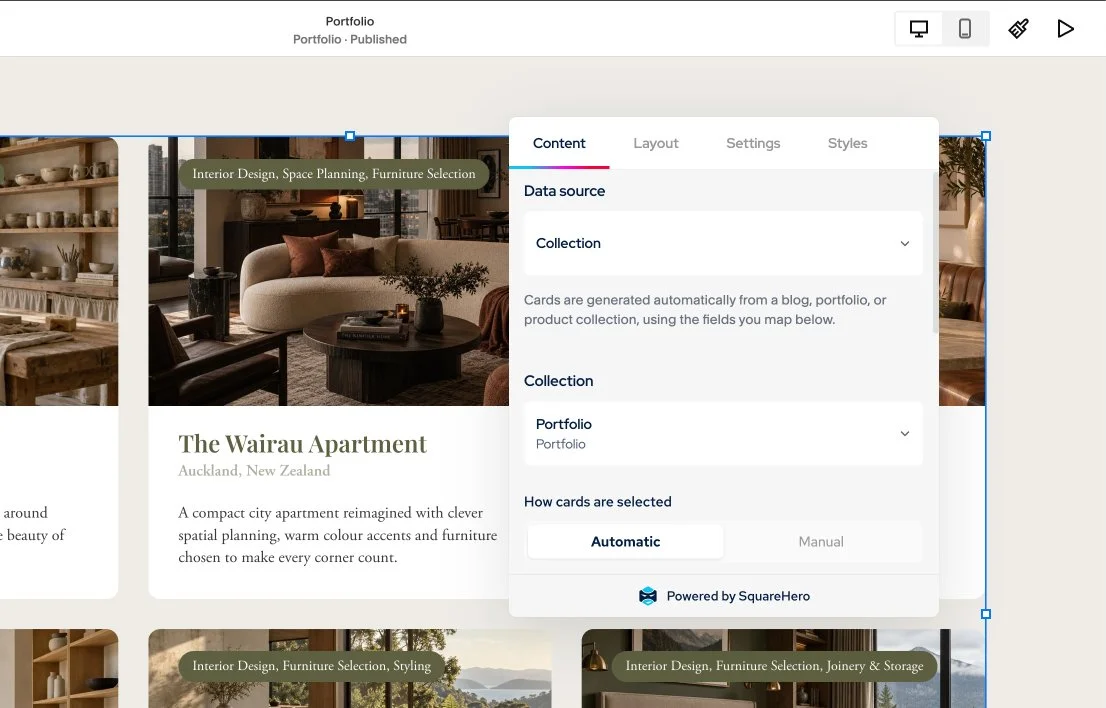
Summary+ settings panel showing a portfolio collection selected as the source, allowing the cards to automatically sync with portfolio items.
Step 2: Add the fields your projects actually need
Squarespace's native Portfolio projects have a relatively simple set of built-in information. They don't have the same built-in excerpt, category and tag fields you'd find on a blog.
Studio's custom fields let you extend that information to suit your site.
For example, you could add:
Location: show where each project took place, directly beneath the title.
Short description: give visitors a quick introduction to each project.
Client and year: add useful context without squeezing everything into the title.
Services or categories: describe the type of work, and use those fields to organise and filter projects.
Video: use a project clip in place of a static thumbnail.
Links, lists or ratings: add other information relevant to your particular site.
You decide which fields to create and fill them in on each project. You can then use those fields in Summary+'s Card content settings to build your own combination of elements.
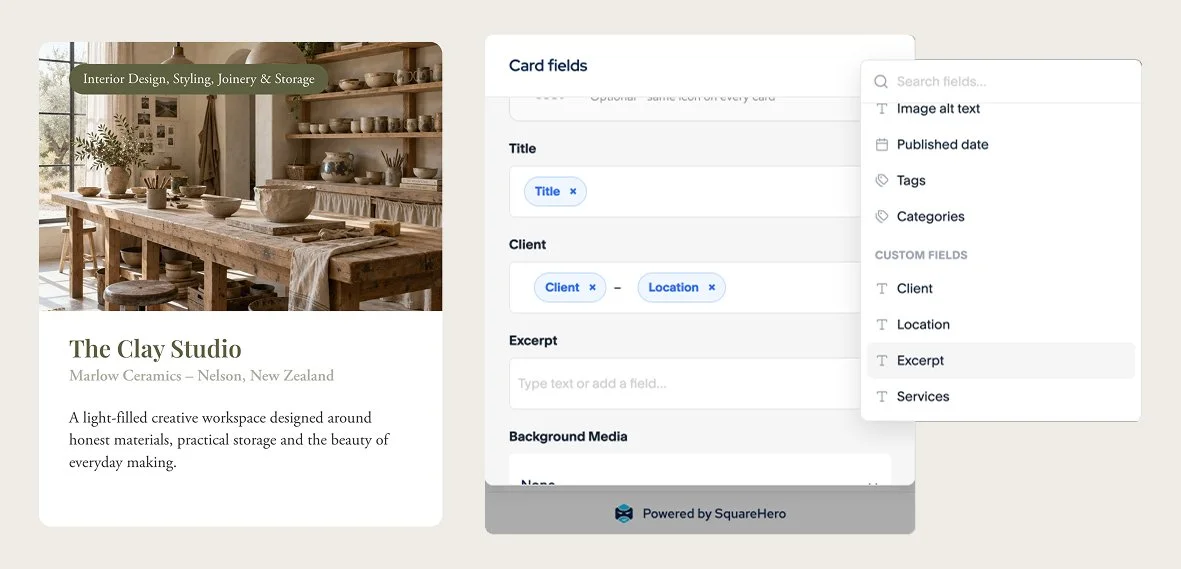
Summary+ settings panel showing collection fields and custom fields mapped to individual card elements, such as the project title, Client & location, and short description.
The difference is that you're not limited to a title, description, image and button. You can create a layout around the information your projects need, whether that's two elements or several.
For a closer look at the available field types and how to set them up, see our guide to custom fields in Squarespace.
Step 3: Choose which projects to show
You can either let Summary+ select projects automatically or choose them yourself.
Automatic: set the number of projects to display and sort them by newest, oldest, alphabetical order or random. You can also narrow the selection using filters. When you publish a new project, it can appear on your homepage without you needing to update the block.
Manual: select the exact projects you want to feature and arrange them in your preferred order. This works well for a curated selection of your best work.
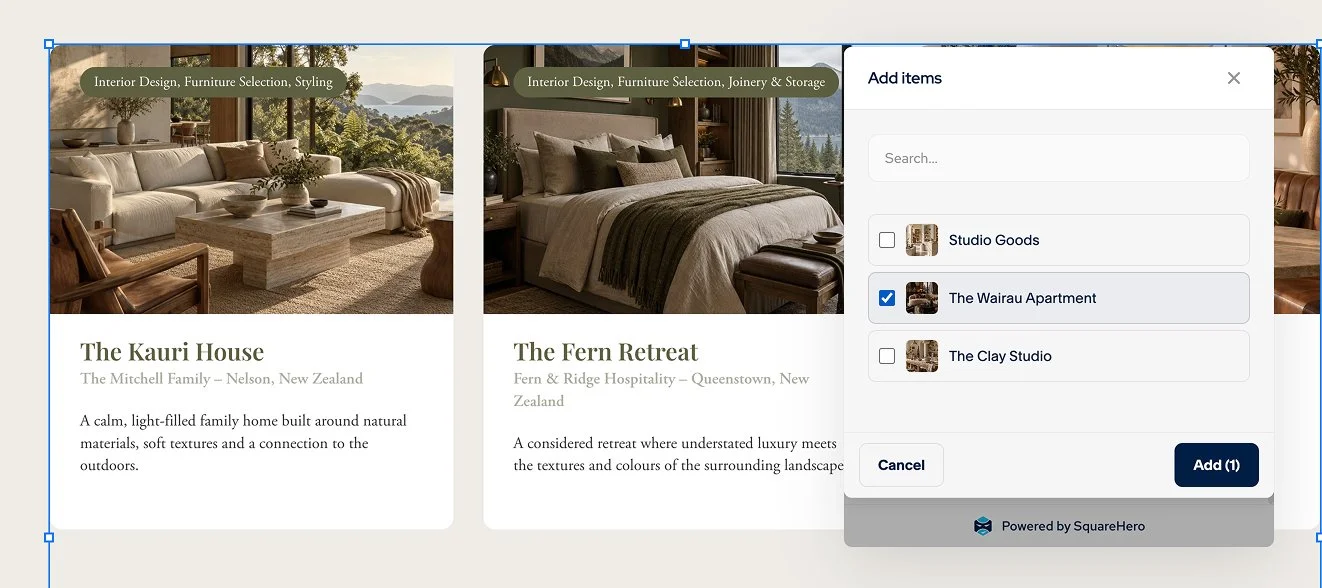
Summary+ settings panel showing the option to manually select specific items from a portfolio collection, giving control over which cards appear on the page.
Step 4: Choose a grid or carousel
Decide how visitors should browse your projects.
Grid: create a conventional project grid with adjustable columns and spacing. You can switch to a swipeable carousel on mobile or add a Load more button for larger collections.
Carousel: display projects in a sliding row, with optional autoplay. This is useful for a compact Selected Work section on your homepage.

Summary+ block displaying portfolio items from a connected collection in a carousel layout, allowing visitors to browse projects horizontally.
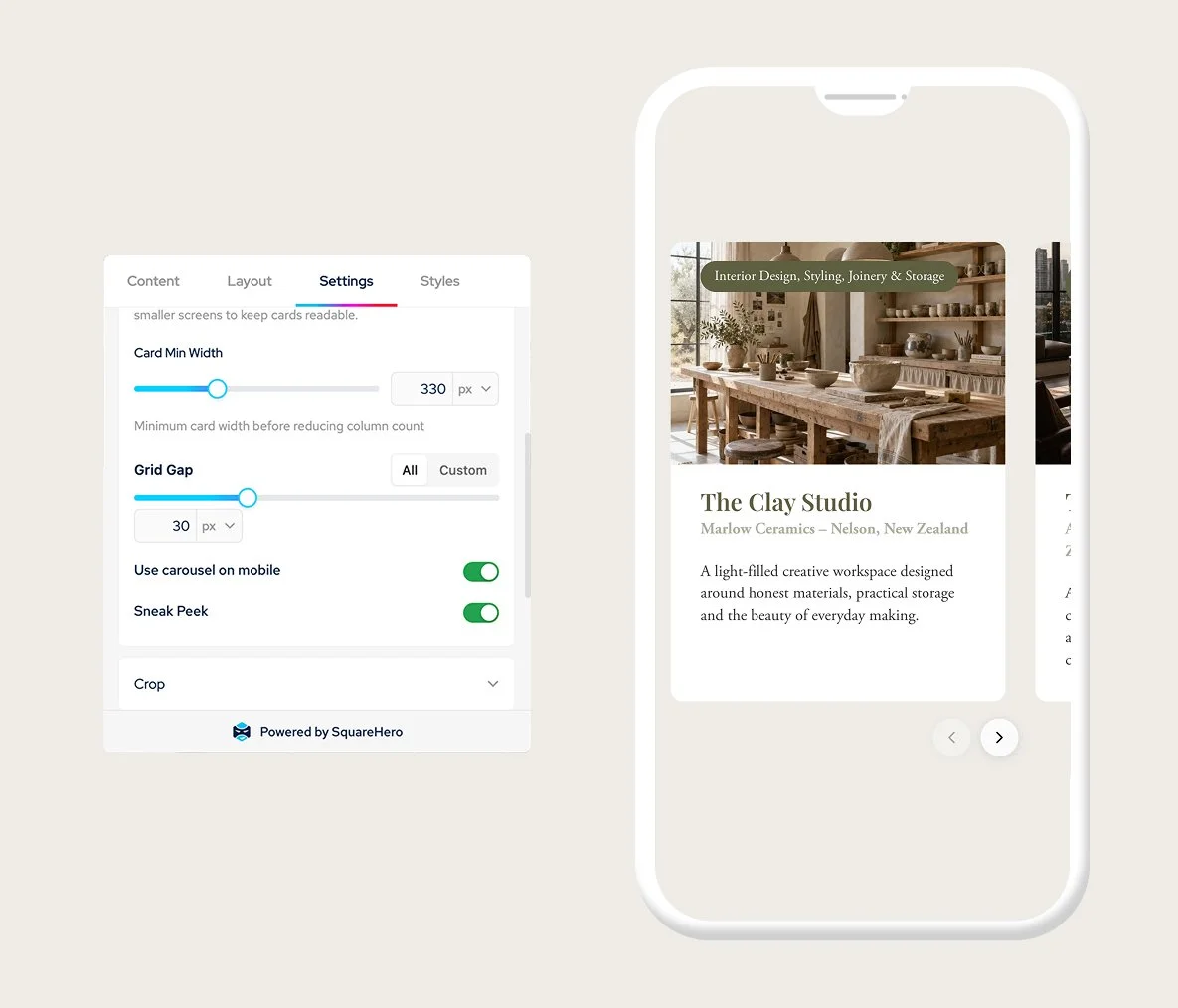
Summary+ settings panel showing the toggle to convert a grid layout into a carousel on mobile, alongside a mobile preview of the horizontally scrollable cards, saving valuable vertical space on smaller screens.
Step 5: Design the cards to suit your site
Once you've chosen your content, you can decide how the cards look.
Choose a vertical or horizontal layout, arrange the elements, and customise image treatments, typography, spacing, borders and buttons directly in the block settings. No CSS required.
You can create a simple, image-led portfolio or a more detailed layout with several pieces of information beneath each project. If you've saved styles in Studio's Style Library, you can reuse them to keep different blocks consistent across your site.
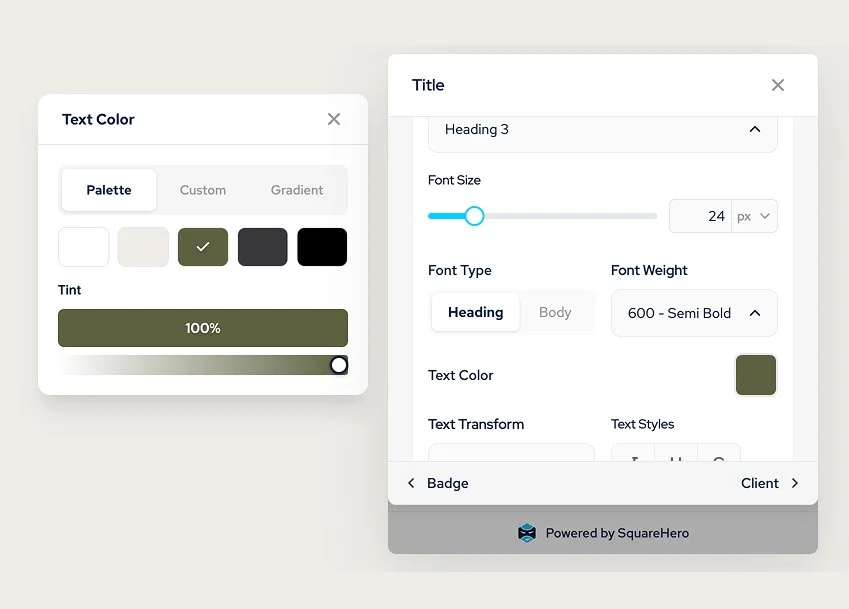
Summary+ settings panel showing the colour palette selector and styling options for the title element, making it easy to match cards to your site's design.
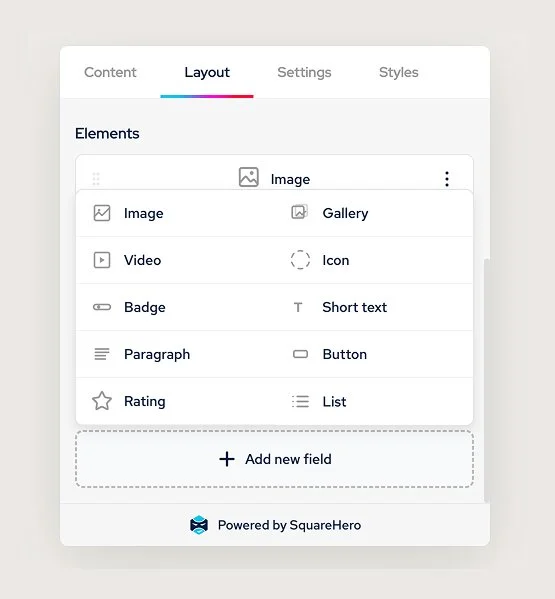
Summary+ settings panel showing the range of element types you can add to a card layout, from text and images to buttons, badges and custom fields.
Go a step further with portfolio filters
The same custom fields can do more than change the appearance of your cards. You can use fields such as Services, Location or Year to give visitors ways to filter projects, alongside a search bar.
That means you can build a portfolio where visitors can find projects relevant to their interests, rather than simply scrolling through a fixed grid.
Is SquareHero Studio right for your site?
Studio is worth considering if you want your projects to stay connected to your homepage while having more control over the information displayed and how it's presented.
If you only need a straightforward gallery of images linking to individual projects, a native gallery or List section may be all you need. If you already have a hidden blog feeding a Summary Block, that approach might work well for your existing setup, too.
But if you want a portfolio that goes beyond the standard image-and-title layout, with custom fields, flexible card designs and visitor filters, Summary+ gives you room to build something more specific to your site.
Requirements: SquareHero Studio requires a Squarespace Core plan or higher and Fluid Engine sections. Classic Editor sections aren't supported. A licence costs US$99/year per site, with a 14-day free trial and no credit card required.